Error 3002 Discord Fix: 10 Easy Ways to Fix Mic Input Issues
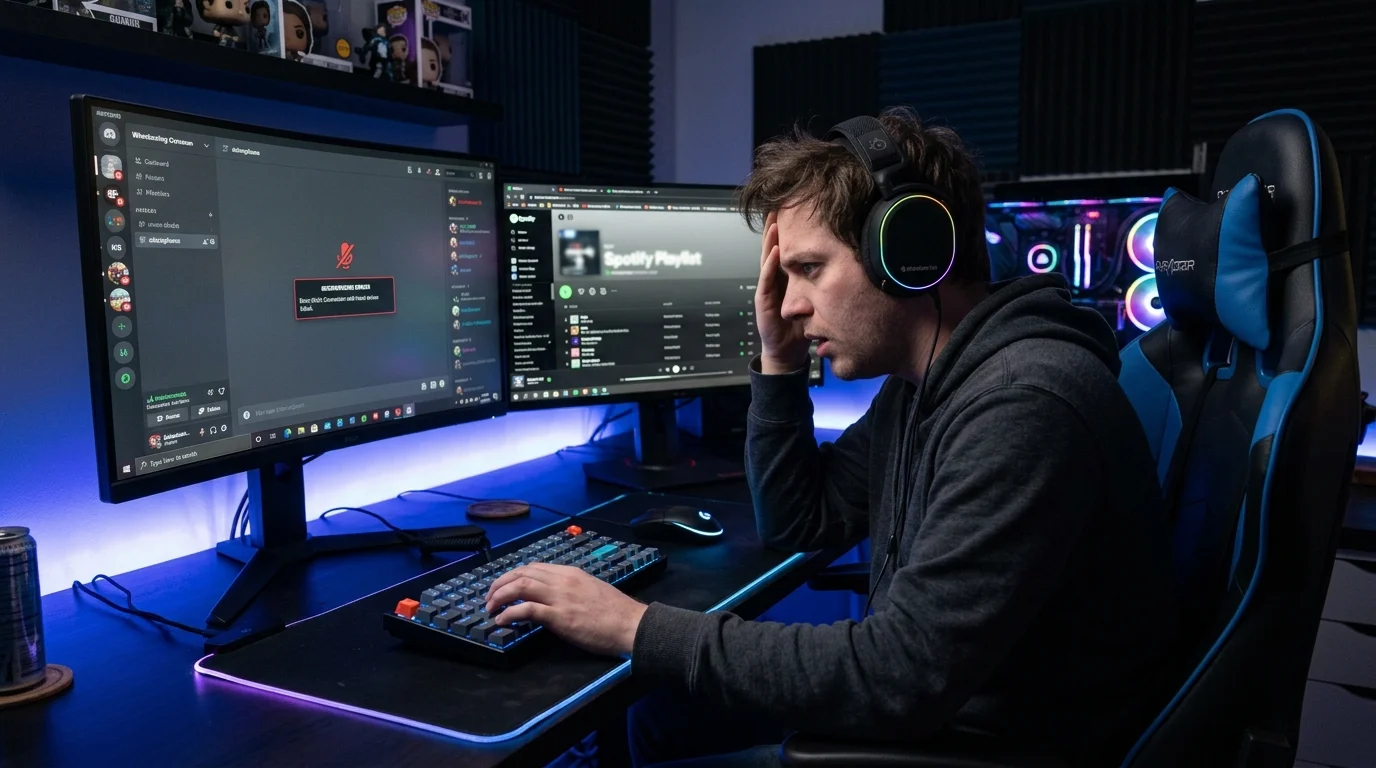
Nothing ruins a gaming session or a team meeting faster than joining a voice channel, starting to speak, and realizing no one can hear a word you are saying. Even worse, a bright warning banner pops up at the top of your app telling you that your microphone is not registering any sound. If you are currently staring at this frustrating audio glitch, you are dealing with error 3002 discord.
Fortunately, this problem is rarely permanent and seldom means your microphone is completely broken. In this comprehensive troubleshooting guide, we will break down why this issue happens across different operating systems and walk you through every proven fix to restore your voice chat in minutes.
What Is Discord Error 3002?
Discord error 3002 is a specific audio input failure. It occurs when the Discord application recognizes that a physical microphone device is connected to your computer or phone, but fails to receive or process any incoming audio signals from it.
Unlike connection issues that drop you from a channel entirely, this error specifically targets your microphone stream. In short, Discord knows your mic exists, but something at the system, app, or network level is blocking the sound from getting through.
Quick 30-Second Diagnostic Checklist
Before diving into deep software configurations, run through these quick preliminary checks to rule out simple hardware oversights:
-
Check Physical Mute Switches: Ensure the inline mute toggle on your headset cable or the physical button on your standalone USB microphone is turned on.
-
Test Your Mic Externally: Open the native Windows Voice Recorder, QuickTime on Mac, or an online mic testing tool. If your voice works there, the issue lies strictly within Discord or system permissions.
-
Soft Restart Discord: Press
Ctrl + Ron Windows orCmd + Ron Mac to force Discord to refresh its web frame and re-initialize audio drivers.
Method 1: System-Level Microphone Permission Configuration
If your operating system revokes microphone access for desktop applications, Discord cannot capture audio regardless of your internal app settings.
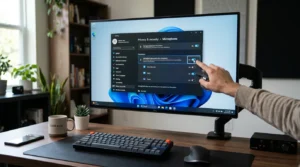
Fixing Microphone Access on Windows 11 & 10
Windows privacy updates frequently reset app permissions in the background.
-
Press
Windows + Ito open your computer Settings. -
Navigate to Privacy & security (or Privacy on Windows 10) and click on Microphone.
-
Toggle on Microphone access and Allow apps to access your microphone.
-
Scroll down to the list of desktop apps and ensure the toggle next to Discord is turned on.
-
If you use Discord on a browser, ensure microphone access is toggled on for Google Chrome, Microsoft Edge, or Mozilla Firefox.
Fixing Microphone Access on macOS
Mac operating systems require strict permission grants for media hardware.
-
Click the Apple menu in the top left corner and select System Settings.
-
Click Privacy & Security in the sidebar, then select Microphone.
-
Locate Discord in the list and toggle the switch to the ON position.
-
Restart Discord to apply the permission changes.
Fixing App Permissions on Mobile
Mobile users often encounter error 3002 in Discord after major operating system updates.
-
On Android: Go to Settings > Apps > Discord > Permissions > Microphone and select Allow only while using the app.
-
On iPhone (iOS): Go to Settings > Discord and ensure the Microphone toggle is green and active.
Method 2: Discord Internal Voice & Audio Engine Adjustments
Once system permissions are verified, you can fine-tune Discord’s internal audio engine settings.
Selecting the Correct Input Device & Sensitivity
-
Open Discord and click the Gear Icon (User Settings) next to your username at the bottom left.
-
Select Voice & Video from the left navigation menu.
-
Under Input Device, do not leave it on “Default”. Manually click the dropdown menu and select your exact microphone name (e.g., HyperX QuadCast or Logitech G Pro Headset).
-
Slide the Input Volume bar all the way to 100%.
-
Under Input Sensitivity, turn off Automatically determine input sensitivity. Speak into your mic and manually adjust the slider so the bar lights up green when you talk.
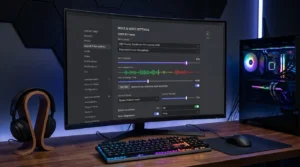
Disabling Krisp Noise Suppression & Audio Processing
Discord uses Krisp software to filter out background noise, but this feature sometimes freezes and silences all incoming audio signals completely.
-
While in Voice & Video settings, scroll down to Noise Suppression.
-
Change the selection from Krisp to None.
-
Scroll down further to the advanced audio processing section and toggle off the following features temporarily:
-
Echo Cancellation
-
Noise Reduction
-
Automatic Gain Control
-
-
Test your voice in a channel to see if this immediately resolves your Discord audio input error 3002.
Switching Discord Audio Subsystem
If the standard audio driver engine inside Discord crashes, switching to a secondary subsystem forces the application to re-route audio processing.
-
In Settings > Voice & Video, scroll down to Audio Subsystem.
-
Click the dropdown menu and change it from Standard to Legacy or Experimental.
-
Confirm the prompt to restart Discord.
Method 3: Windows Sound Settings & Driver Troubleshooting
When system-level conflicts occur, adjusting how Windows manages sound hardware stops third-party software from locking up your device.
Unchecking Exclusive Mode in Sound Control Panel
Applications like Zoom, OBS Studio, Skype, or VoiceMeeter can take sole control of your microphone hardware, preventing Discord from accessing it.
-
Press
Windows + R, typemmsys.cpl, and press Enter to open the classic Sound Control Panel. -
Click the Recording tab at the top.
-
Right-click your active microphone and select Properties.
-
Navigate to the Advanced tab.
-
Uncheck Allow applications to take exclusive control of this device and Give exclusive mode applications priority.
-
Click Apply, then OK, and restart your PC.
Checking Realtek Audio Console Settings
If your desktop or laptop utilizes Realtek audio hardware, system sound settings can be overridden by the proprietary Realtek controller.
-
Search for Realtek Audio Console in your Windows search bar and launch it.
-
Click the Microphone tab on the left.
-
Ensure the main input volume slider is turned up and that the mute toggle icon is not highlighted.
Updating Sound Drivers via Device Manager
Outdated or corrupted sound drivers stop Windows from properly passing microphone data to real-time communication apps.
-
Right-click the Windows Start button and select Device Manager.
-
Expand the Audio inputs and outputs category.
-
Right-click your microphone device and select Update driver.
-
Choose Search automatically for drivers.
-
If no update is found, right-click the microphone again, select Uninstall device, and restart your computer. Windows will automatically reinstall a fresh driver upon reboot.
Method 4: Fixing Discord Error 3002 on Web Browsers
Using Discord inside web browsers like Chrome, Edge, or Firefox relies on web permissions and WebRTC data packets.
Granting Browser Site Permissions
-
Open your browser and navigate to the web version of Discord.
-
Click the Padlock icon or Tune icon located on the far left side of the URL address bar (
[discord.com/app](https://discord.com/app)). -
Locate Microphone in the dropdown list and set it explicitly to Allow.
-
Refresh the webpage and rejoin your voice channel.
Clearing Browser Cache & Site Data
Corrupted browser cache can corrupt WebRTC audio handshakes.
-
In Chrome or Edge, press
Ctrl + Shift + Delete. -
Set the time range to All time.
-
Check the boxes for Cookies and other site data and Cached images and files.
-
Click Clear data, restart your web browser, and log back into Discord.
Method 5: Clearing Discord Cache & Reinstalling
When internal configuration files inside your computer get corrupted, clearing local app data resets Discord back to a clean slate.
Deleting Discord AppData & LocalAppData Cache
-
Completely close Discord by right-clicking its icon in the system tray (bottom right of taskbar) and selecting Quit Discord.
-
Press
Windows + Rto open the Run dialog box. -
Type
%appdata%and click OK. Locate the Discord folder and delete it. -
Press
Windows + Ragain, type%localappdata%, click OK, and delete the Discord folder found there as well. -
Launch Discord again, log into your account, and test your microphone.
Method 6: Network, Firewall, and Hardware Setup Fixes
If you have tried every setting adjustment and are still encountering error 3002 in Discord, the issue may involve network restrictions or specialized audio hardware.
Resolving WebRTC UDP Protocol Restrictions & VPNs
Discord voice chat relies heavily on WebRTC over UDP network protocols. If your school, workplace, router firewall, or virtual private network blocks UDP traffic, audio transmission will fail.
-
Configure Your VPN: Ensure your VPN provider supports UDP traffic. If you use a basic proxy or restricted server, switch to a gaming-optimized server or temporarily disable the VPN.
-
Flush DNS Settings: Open Command Prompt as Administrator and run
ipconfig /flushdnsto clear outdated network paths.
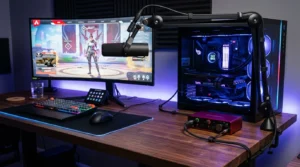
Troubleshooting USB Headsets & XLR Audio Interfaces
Complex hardware setups like Focusrite Scarlett interfaces, GoXLR mixers, or Elgato Wave Link virtual channels require specific handling:
-
Single Channel Mapping: Professional audio interfaces often output stereo signals. In Discord Voice & Video settings, ensure your interface is configured properly, or switch Windows sound settings to a single-channel 24-bit 48000 Hz format.
-
Direct USB Ports: Plug USB headsets and interfaces directly into motherboard USB ports on the back of your PC rather than unpowered external USB hubs.
FAQs
Why does error 3002 discord happen when my mic works in other apps?
This happens because Discord uses strict noise-suppression engines (Krisp) and custom WebRTC streaming protocols. Other apps like Zoom or Skype process raw audio differently, so a single permission flag or audio processing glitch inside Discord can cause it to lose input access while other software continues working normally.
Does Krisp Noise Suppression cause error 3002 Discord?
Yes. Krisp noise suppression is one of the most frequent software causes behind error 3002 Discord. When the Krisp plugin fails to update or crashes internally, it silences all incoming audio to prevent background noise, resulting in zero microphone input.
Will resetting Discord voice settings delete my server permissions or keybinds?
No. Clicking “Reset Voice Settings” at the bottom of the Voice & Video panel only resets your input/output devices, volume levels, and audio processing toggles. Your server roles, friends list, and custom keybinds remain completely safe.
What should I do if error 3002 discord persists after trying all fixes?
If none of the software or system adjustments resolve the problem, test your microphone on a completely different computer or phone. If the microphone fails on other hardware as well, the physical cable or internal mic capsule may be damaged and require replacement.
Summary & Key Takeaways
Dealing with voice issues during an active game or stream is annoying, but fixing this specific audio detection bug comes down to a few core steps:
-
Always verify Windows or Mac privacy permissions first, as OS updates are responsible for most sudden input blocks.
-
Disable Krisp noise suppression and manually select your hardware device under Discord Voice & Video settings rather than relying on default options.
-
Turn off Exclusive Mode in your system sound settings to keep background applications from locking up your microphone hardware.
By following this step-by-step troubleshooting guide, you can quickly resolve error 3002 in Discord and get back to seamless voice chats with your team.







Post Comment